Designer on the web. Handover on site.
See each feature in a short walkthrough. Design, hand over, schedule and track the job — with finance and your team connected.
Designer + Handover
Design on the web. Hand over to site.
Two core tools. One connected job. Prepare the scaffold in Designer, then put the drawings and checklist straight into your crew’s hands.
Designer / Web
 Scaffold-erDesigner
Riverside · Front elevation
Design pack · Revision 03
Design pack
Site updates
Handover / Crew app
Scaffold-erCrewYour job
Riverside
Updates shared with the office
Designer / Web
Build the 3D model. Prepare drawings, materials and the handover pack for review.
Explore DesignerHandover / On site
Your own login. Clear checklists, site photos and clock-in. Every update goes back to the office.
Explore HandoverOwners, designers and office staff use the web. Crew use the app. Crew sign in
Designer · Web
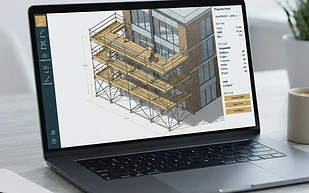
Design it before a single tube leaves the yard.
- Interactive 3D editor for tube & fitting, Cuplok, Kwikstage, Ringlock and towers
- Plan and elevation drawings, generated automatically from the model
- Measured ground zones, visual textures and evidence-based ground pressure estimates
- Draft checks and recorded engineering review before construction
- Material schedule and weight totals, priced from your own library
- Reusable templates and PDF exports for approval
Explore the 3D Designer
75 secondsExplore the model, settings, site evidence, drawings, quantities and measurement tools.
Recorded in our TEST workspace · Captioned · No sound needed
Steps in this video
- Orbit the model and inspect individual components
- Review presets, dimensions, materials and scaffold systems
- Explore protection, access, ties and load classes
- Review ground, load and measured site evidence
- Compare the plan and all four elevations
- Check parts, quantities and outstanding design checks
- Find reusable templates and measure between points in 3D
Handover · Crew app
Send the plan out. Bring the site updates back.
- Owners and designers prepare and send handoffs from the website
- Each crew member signs in to their own simple phone app
- Receive the pack, review drawings and follow the job checklist
- Take site photos, post progress and clock in against the job
- The office sees the same handoff, photos, progress and timesheets
- Install on your home screen; internet required for loading and saving
Use the Crew app on your phone
30 secondsThe Crew phone view: job checklist, drawings, material pick list, photo log and hours.
Recorded in the TEST account’s Crew phone view. · Captioned · No sound needed
Steps in this video
- Open the job’s handoff checklist
- Read elevations and the material pick list
- Find the job’s photo log
- Review hours and clock-in controls
Job handover dashboard
See every job and who has it right now.
- Handover board from design to ready for crew, on site, invoiced and closed
- Site health at a glance, showing overdue work, missing photos and blockers
- Each team sees its own queue and opens the next step in one click
- Daily site reports emailed to managers every weekday
Find the next action
8 secondsSite health, attention filters and the site summary.
Recorded in our TEST workspace · Captioned · No sound needed
Steps in this video
- Filter sites needing attention
- Open progress and next actions
Crew scheduling
Plan the week, drag to reschedule.
- Monthly calendar of every crew job, filtered by crew or project
- Drag people onto a day and extend assignments across multiple days
- Stock check against yard quantities before jobs go out
- Everyone sees only the jobs assigned to them
Plan the crew’s week
17 secondsCalendar, project assignment, crew dates and material needs.
Recorded in our TEST workspace · Captioned · No sound needed
Steps in this video
- Prepare an assignment
- Choose the project
- Review assignment dates
- Check material needs
Jobs & finance
Know what each job actually makes.
- Quotes and invoices linked to each project
- Job costs for labour, transport, equipment and waste
- Worker pay tracking with paid and unpaid status
- Profit per job and prompts when a job is ready to invoice
Keep job finances together
14 secondsQuotes, invoices, project costs and worker pay.
Recorded in our TEST workspace · Captioned · No sound needed
Steps in this video
- Open quotes and invoices
- Prepare a new document
- Review project cost entry
- Review worker pay entry
Team & roles
The right access for every person.
- Private company workspace, with your data kept separate
- Roles for owner, designer, office, site manager and crew
- Invite your team by email in seconds
- Owners can preview the app as any role
Give everyone the right access
17 secondsRole permissions, invitations and the crew interface.
Recorded in our TEST workspace · Captioned · No sound needed
Steps in this video
- Review role permissions
- Find invitations and the crew app
- Preview the crew’s view
Every job handed over, never dropped
Tap a step to see what happens at each stage.
Design
Build the scaffold in 3D, record measured site and ground evidence, and prepare drawings and a material schedule for competent engineering review.

Ready to run your company in one place?
Start your three-day trial with a private company workspace. No card details required.